Archiving removes a template from the active dashboard but keeps every completed and pending submission intact. It is the safe way to retire an outdated form.
-
Archive a template
Open the template and select ARCHIVE in its toolbar. The template disappears from the active list immediately; nothing is deleted, and existing signed documents remain downloadable.
-
Find archived templates
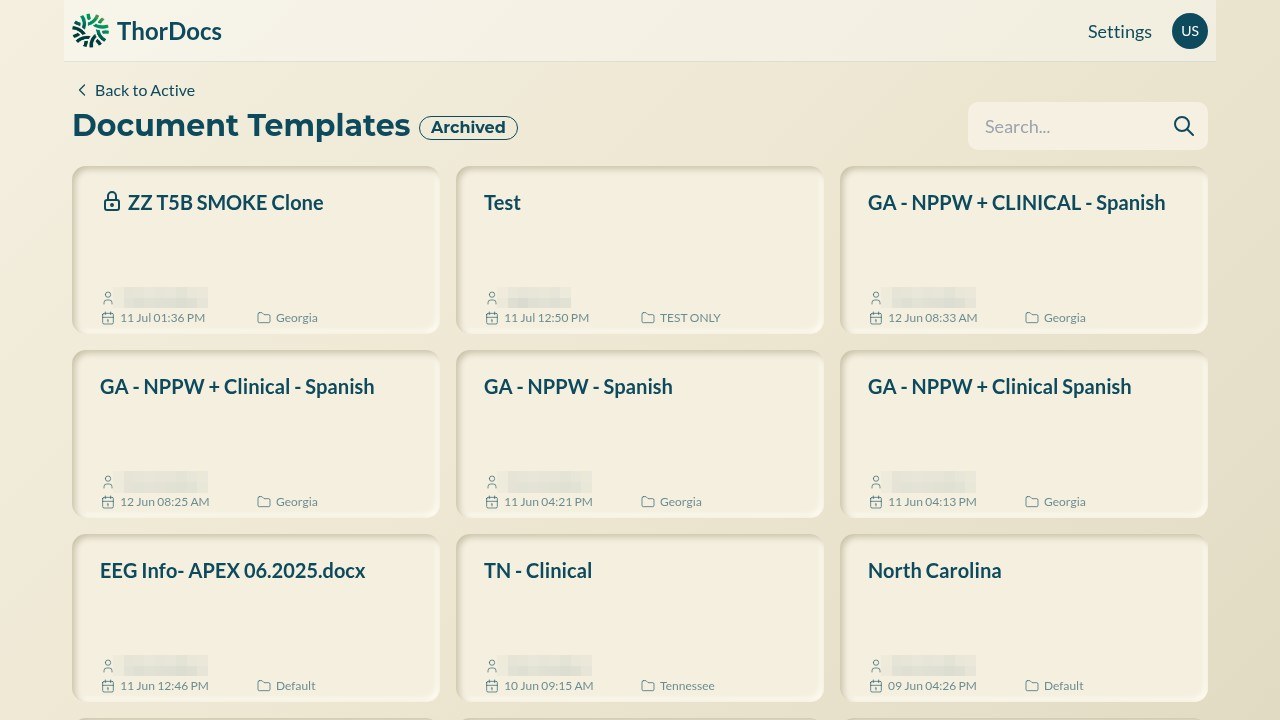
Open the archived list at Templates → Archived (the dashboard links to it, or browse to /templates/archived). Cards show the same owner and folder details as active templates, with an Archived badge on the page heading.
-
Restore — or delete permanently
Each archived card has a Restore control that returns the template to the active dashboard exactly as it was. Deleting from the archived list is permanent and removes the template's signed documents with it, so ThorDocs asks for explicit confirmation — prefer Restore unless you are certain.