Folders keep a growing template library manageable — one per site, per department, or per workflow. A template lives in exactly one folder (or in the Default folder if you never chose one).
-
Put a template into a folder
When you create or clone a template, the dialog shows the destination folder next to a Change Folder link. Select it, type a folder name, and pick an existing folder or create a new one on the spot — folders are created the first time something is filed into them.
-
Open a folder
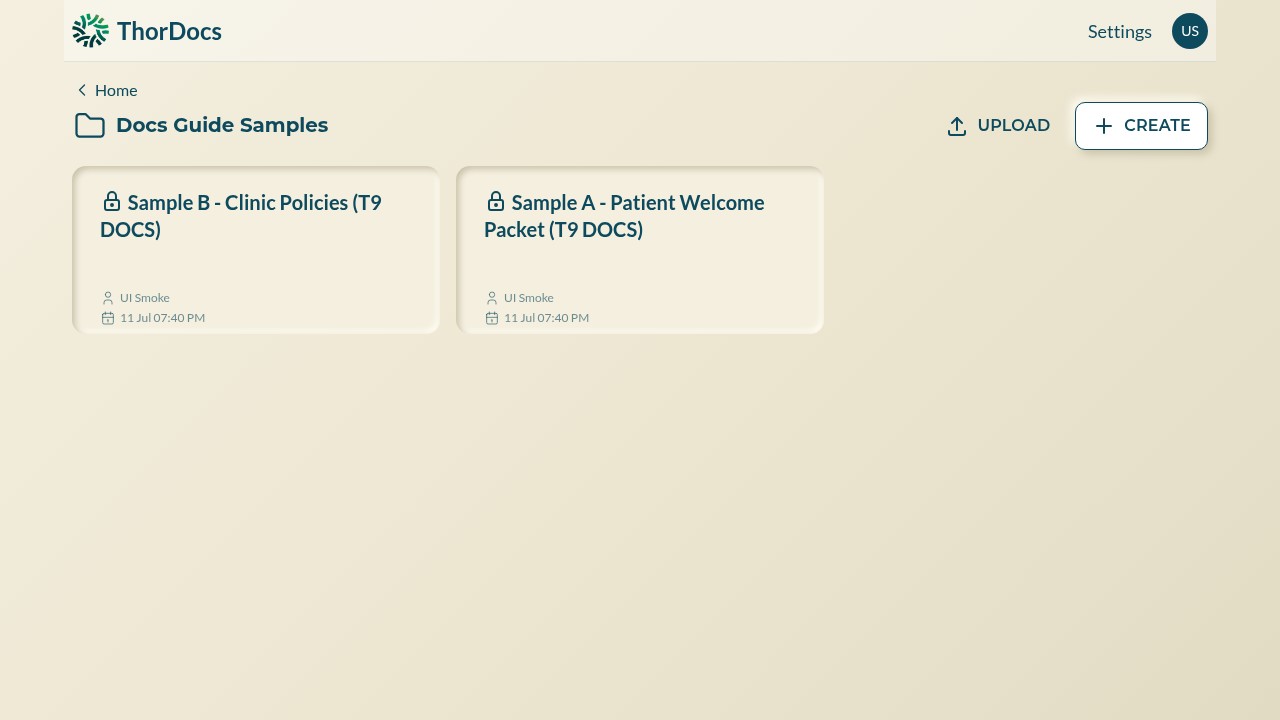
Folder cards appear at the top of the Templates view. Open one to see only its templates, with the same UPLOAD and CREATE actions scoped to that folder. Use the Home breadcrumb to step back out.
-
Move an existing template
Clone the template into the right folder using the Clone action, or drag the template card onto a folder card from the dashboard. Folder names can be edited later without breaking anything — links and submissions follow the template, not the folder.