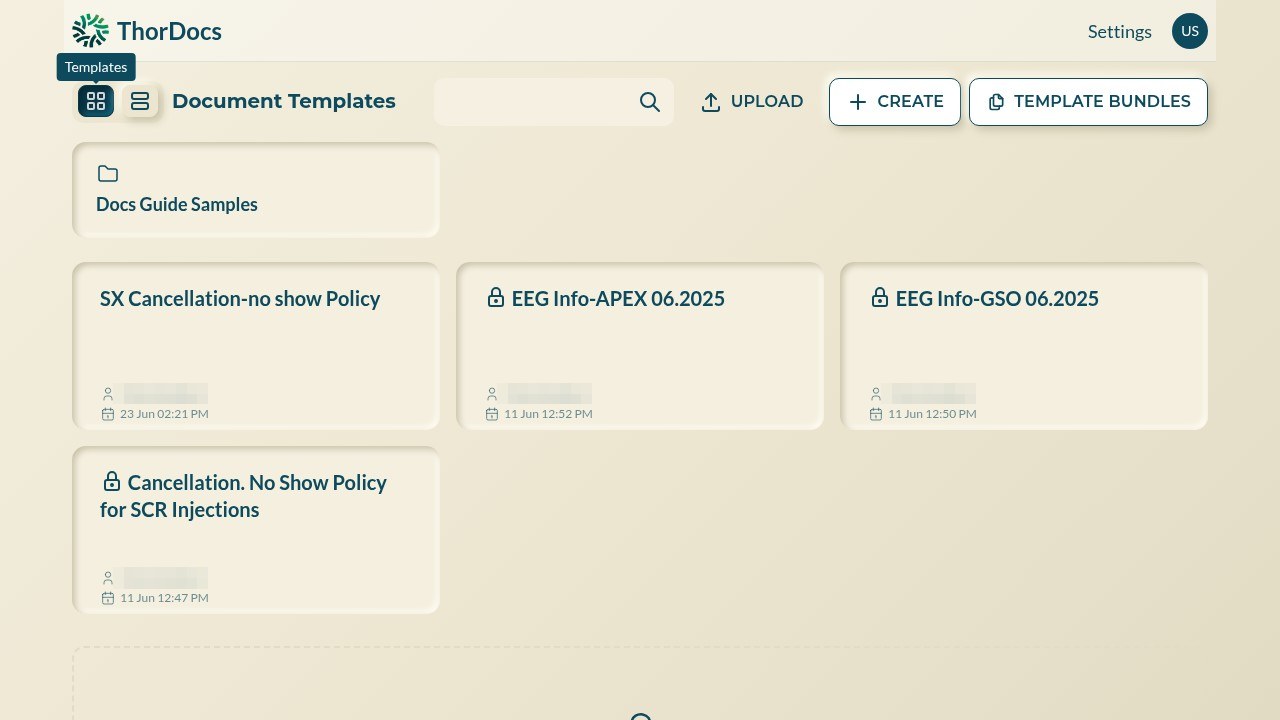
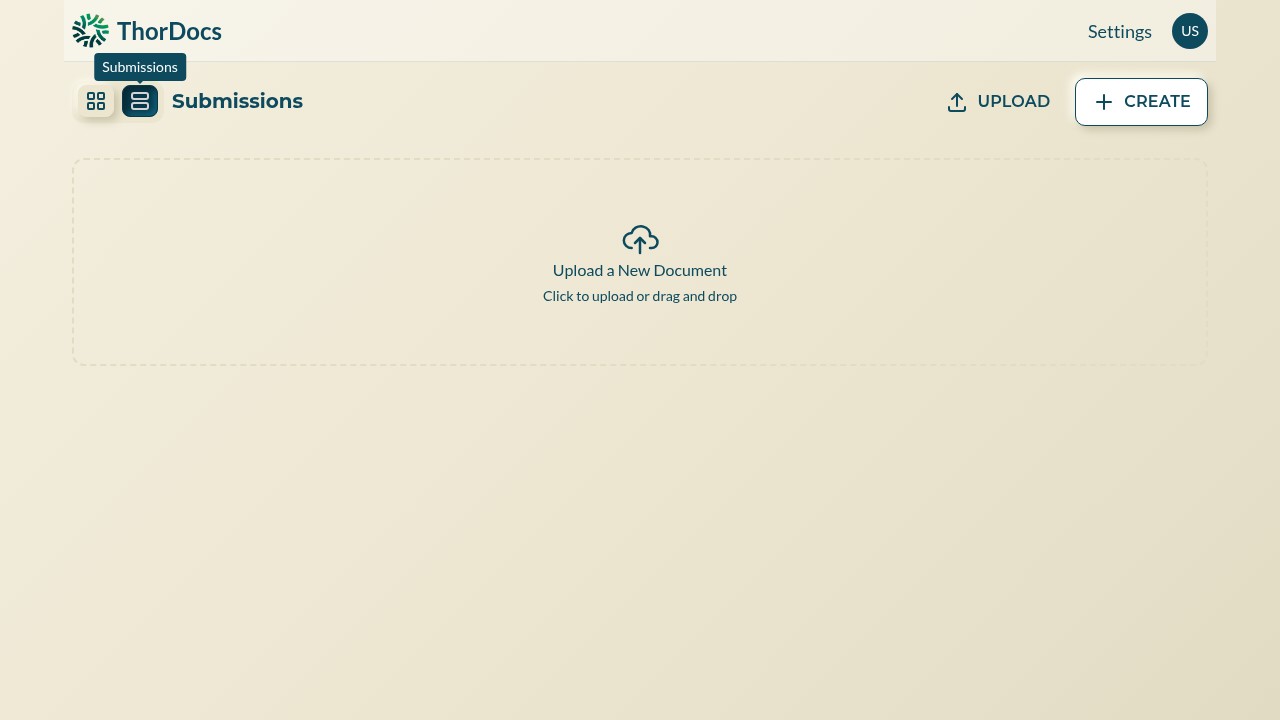
After sign-in you land on the dashboard. It has two views — Templates and Submissions — switched with the two icons in the top-left corner. ThorDocs remembers which view you used last and brings you back to it.
-
Browse the Templates view
The grid shows your folders first, then individual document templates with their owner and last-updated time. A padlock on a card means per-template access control is active for it. Use the search box to filter by name, UPLOAD to turn an existing PDF or Word file into a template, CREATE to start a blank one, and TEMPLATE BUNDLES to manage multi-document packets.
-
Switch to the Submissions view
Select the list icon next to the grid icon to see every signature request you have sent — who received it, its status, and quick actions. This is the view to use when your question is "where does that signature stand", not "where is that template".
-
Jump back home from anywhere
The ThorDocs logo in the top-left corner always returns you to the dashboard, and the Settings link in the top-right opens your profile and account pages.