Every save from the in-browser editor produces a revision. The revision list answers "what changed and who changed it" for the document text, alongside the audit log's record of account-level events.
-
Open the revisions list
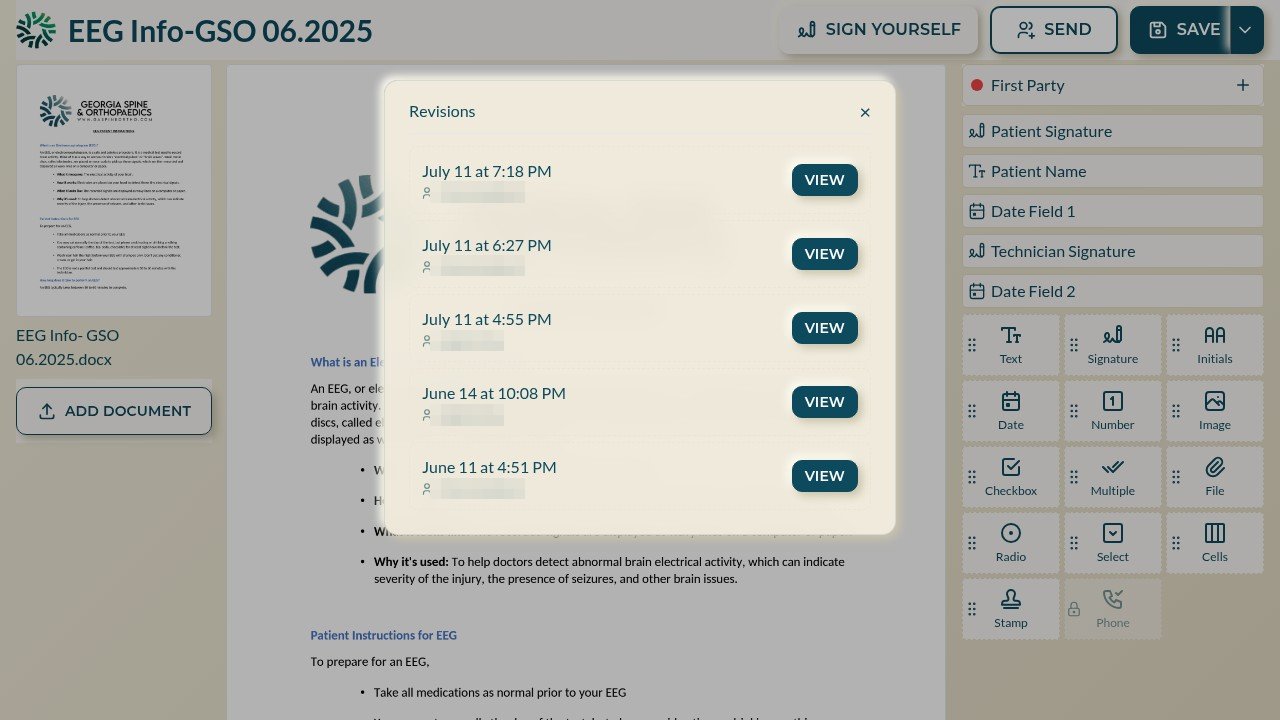
In the template builder, open the dropdown arrow next to SAVE and choose Revisions. Each entry shows the save time and the user who saved it.
-
View an earlier version
Select VIEW on any entry to open that revision of the document. Compare it with the current text before deciding anything needs to roll back.
-
Roll back by re-editing
To restore earlier wording, open the current document in the editor and reapply the text from the revision you viewed, then save — this records the rollback as its own revision, so the trail stays complete.