Sending creates a submission — one tracked signing flow per recipient set. Recipients do not need a ThorDocs account; they get a private link.
-
Start from the template
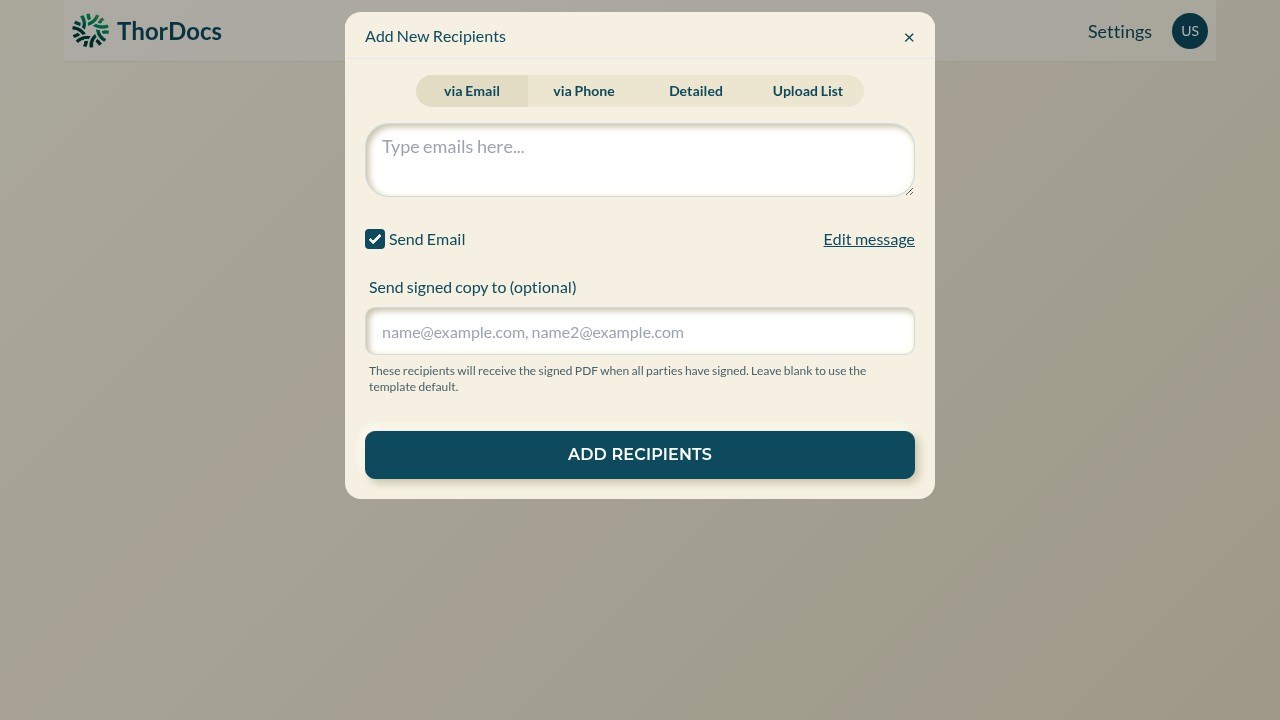
Open the template and select SEND TO RECIPIENTS (or SEND from inside the builder). The Add New Recipients dialog opens.
-
Add recipients your way
Use the via Email tab to paste one or many addresses; via Phone to send by SMS instead; Detailed to assign specific people to specific signing parties or pre-fill field values; and Upload List to import a spreadsheet of recipients in bulk. Each recipient gets an individual, private signing link.
-
Control the email
Keep Send Email checked to have ThorDocs deliver the request, and use Edit message to customize the subject and body. The optional "Send signed copy to" list adds addresses that receive the final PDF when all parties have signed. Select ADD RECIPIENTS to send.