A shared link is the walk-up counterpart to emailed requests: one URL per template, usable by anyone who has it. Each person who opens it starts their own submission.
-
Enable the link
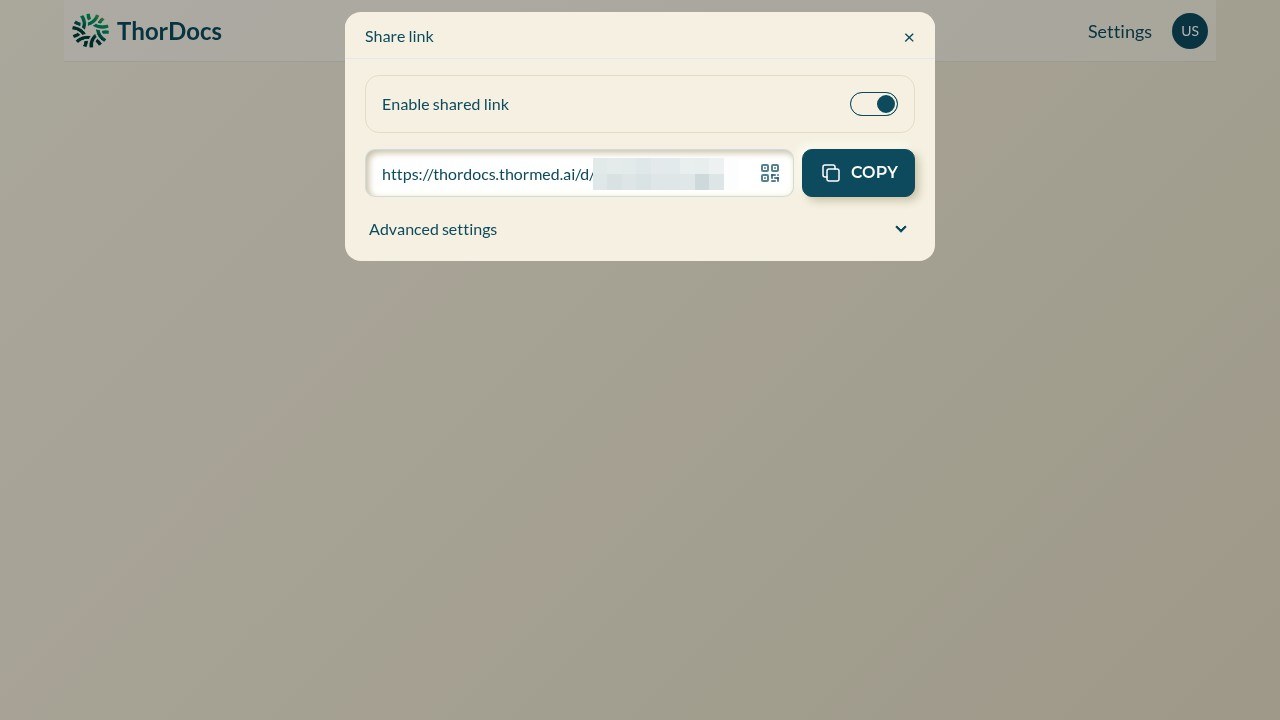
Open the template and select LINK in the toolbar. Turn on "Enable shared link" — the URL appears with a COPY button and a QR-code option for printing or posting on-site.
-
Tune the advanced settings
Expand Advanced settings to control how the shared form behaves — for example whether signers must confirm their email before starting. Leave the defaults unless your front-desk workflow needs otherwise.
-
Revoke any time
Switch the toggle off to disable the URL immediately. Submissions already completed through the link keep their signed documents; the link itself simply stops accepting new signers.